

ツール解説
How We Mass-Produce Blog & Social Whiteboard Illustrations with gpt-image-2 — A Practical Sales Claw Workflow for General Readers
12 分
Codex Chrome Extension (2026-05-07) lets Codex use your signed-in Chrome state so it can act inside LinkedIn, Salesforce, Gmail, and internal tools. Per-site approval keeps you in control. Here's how it pairs with Playwright and Sales Claw, plus a 15-item pre-production checklist.

中澤 圭志
@keishi_nakazawaSales Claw maintainer
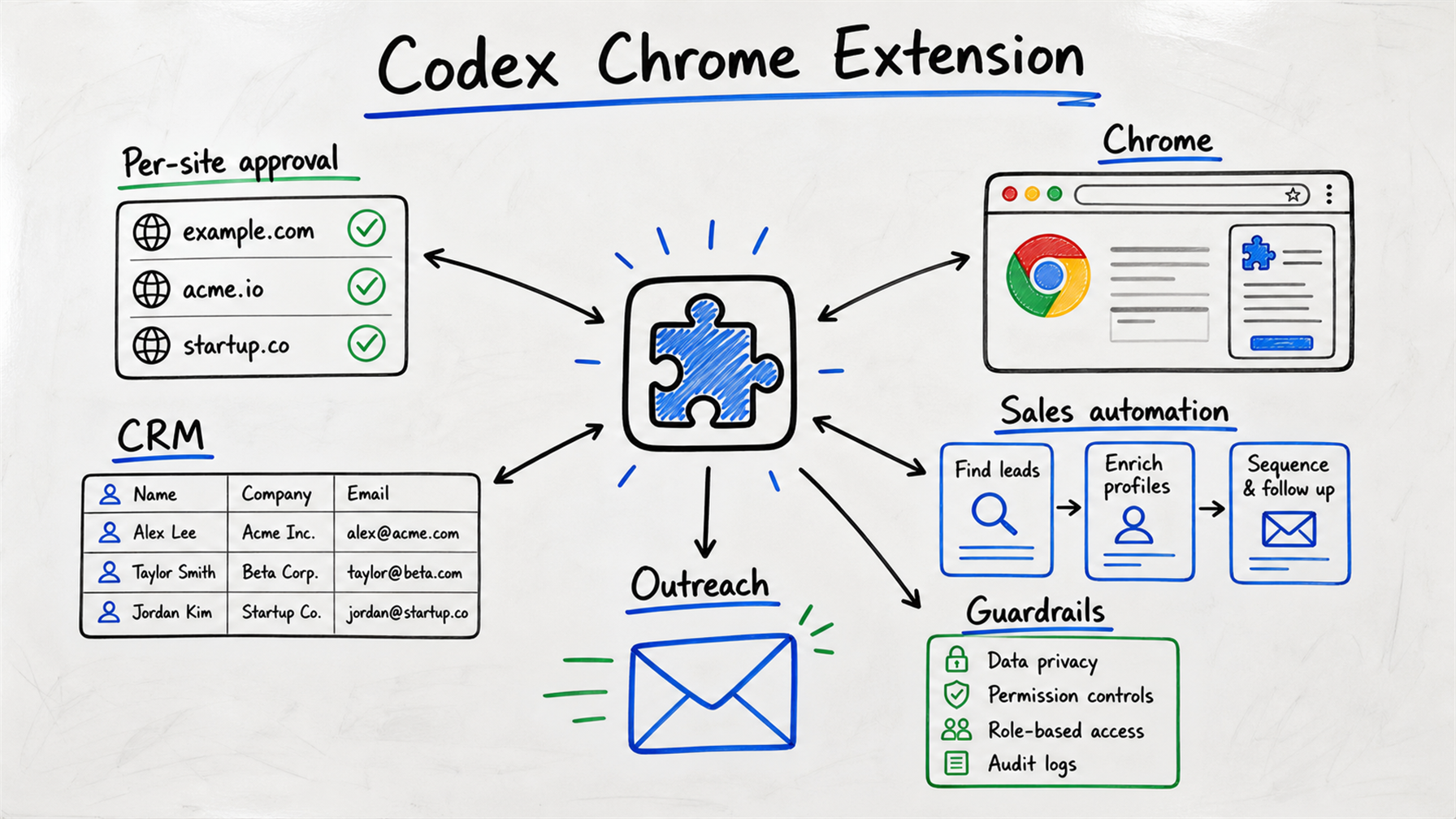
Key Facts
Release date
2026-05-07 (alongside Codex CLI 0.129.0)
What it is
Codex Chrome Extension (Chrome-only browser extension)
Role A
AI operates LinkedIn / Salesforce / Gmail / internal SaaS using your signed-in Chrome state
Role B
Per-site approval + Allowlist/Blocklist + background parallel tabs (supervised automation)
“So Codex can now operate Chrome on my behalf — and log into LinkedIn and Salesforce too? How is this different from Playwright? What about Sales Claw?” — This post unpacks the Codex Chrome Extension, released by OpenAI on 2026-05-07, using OpenAI’s official Codex Docs (developers.openai.com/codex) as the primary source. We cover how to use it for B2B sales automation and how it divides responsibility with Sales Claw.
The Codex Chrome Extension lets Codex borrow your already-signed-in Chrome state — cookies, sessions, installed extensions, local storage — to perform browser tasks. Headless browser automation (Playwright, Selenium) has always struggled with “maintaining signed-in state, MFA, SSO.” This extension side-steps the entire wall by lending your daily-use Chrome to the AI.
Until now, combining AI with browser automation came down to two choices:
The Codex Chrome Extension proposes a third option: the AI borrows the user’s already-signed-in Chrome — no new profile required — runs in background tabs so the user can keep working in other tabs, and only touches domains the user has explicitly approved.
Almost every task you want to delegate in B2B sales lives behind a sign-in wall: LinkedIn Sales Navigator for decision-maker research, Salesforce / HubSpot for CRM notes, Gmail / Outlookfor reply drafts, internal SSO-protected SaaS for approval workflows. Playwright/Selenium can’t reliably handle MFA, SSO, or session expiry; APIs are limited.
| 項目 | Playwright / Selenium pain | Codex Chrome Extension answer |
|---|---|---|
| Maintain signed-in state | Manual cookie save/restore | Reuses your daily Chrome |
| MFA / SSO bypass | Essentially impossible in code | Inherits your already-authenticated state |
| Session expiry | Trapped in re-auth loops | Stays valid while you use Chrome |
| Implementation cost | Per-site selectors and waiters | Extension + per-site approval only |
| Fully unattended runs | In theory yes; in practice breaks | No — assumes user is signed in |
| Mass parallel sends | Yes (100/h per session) | Not ideal (per-site approval friction) |
Three components: (1) the Chrome extension itself, (2) the Codex CLI / desktop app, and (3) Chrome native messaging linking the two. A typical flow: user asks Codex to research a company on LinkedIn → Codex requests per-site approval for linkedin.com → user grants (one-time or Allowlist) → Codex drives Chrome to the profile page, extracts text and screenshots, returns results.
Crucially the extension runs in background tabs, so the user can continue working in other tabs — Codex never seizes focus the way Selenium IDE / Puppeteer historically did.
Per-domain a site falls into one of three states: Allowlist (auto-allowed), Blocklist (always denied), or unregistered(per-site prompt every access). The user picks “allow once / allow & add to Allowlist / deny / add to Blocklist.”
The setting “Always allow browser content” kills all approval prompts — the official docs call it elevated risk. Keep it OFF in any work environment: it removes Allowlist’s meaning, hides silent third-party access, and breaks the audit trail of which domains Codex actually touched.
Browser history access is handled separately and has no always-allow option— every history read needs explicit approval. That’s the right design: history is essentially the user’s behavior log.
Where the extension shines: research, editing, and note-taking after sign-in.
linkedin.com once, Codex drives the search and pulls profile text. 15–25 min manual → 3–5 min supervised.| 項目 | Codex Chrome Extension | Sales Claw |
|---|---|---|
| Primary surface | Sign-in-required SaaS | Public contact forms |
| Throughput | 1–10 tasks/hr (supervised) | 100+ submissions/hr (pre-submit checks) |
| User involvement | Per-site approval + review | Dashboard kickoff + awaiting_approval audit |
| Overnight batch runs | Not suited (needs login state) | Suited (local OSS, 24/7) |
| Daytime research / editing | Excellent | Not suited |
| Audit logging | Codex-side (OpenAI environment) | Local action-log.json + Compliance Footer |
A workable 24-hour pattern: morning (9–10): Codex Chrome Extension reviews yesterday’s Salesforce notes, finds decision-makers on LinkedIn for 10 target accounts, drafts 5 Gmail replies. Daytime (10–18): the rep does the actual selling, Codex assisting with real-time Salesforce input. Overnight (22–06): Sales Claw runs 500 contact-form submissions with pre-submit checks, NG-keyword detection, frequency limits, awaiting_approval for review the next morning.
Four risk categories before production: (1) terms of service — LinkedIn’s User Agreement §8.2 restricts automation tools; treatment of an extension that runs as the user is lighter than scraping but not infinitely so; (2) security — verify the publisher really is OpenAI; (3) privacy — history and internal SaaS contents may flow to OpenAI, GDPR/APPI implications; (4) misclicks — irreversible actions (send, payment, delete) must require human final approval.
Pre-production checklist
Codex Chrome Extension is the third option between full headless automation and pure manual clicking. The pattern that makes it work in B2B sales is splitting the day: Codex for daytime research and editing inside signed-in SaaS, Sales Claw for overnight contact-form sends. Neither alone covers 24 hours; combined, they do.
Next steps: install Codex CLI 0.129.0+, open the Plugins menu and add the Chrome extension, walk through the 15-item checklist above, and set up the parallel-run pattern documented in our Quickstart and Workflow guide. Sales Claw itself is free — download here.
This is the English version of the post. Read the Japanese-language original (canonical) here.
本記事は X 公式アカウントと公式ドキュメントを一次情報として参照しています。
この記事の著者
中澤 圭志
Sales Claw maintainer
Designs and develops Sales Claw. Writes from the field on B2B sales automation and applied AI.