業界トレンド
The Day Anthropic Filed for an IPO — What the Claude Maker's Listing Prep Means for the Rest of Us Who Use AI
13 分
Bottom line: deck quality is decided not by "which tool you use" but by "how you chain the three." Structure in Claude, images in GPT Image 2, recreation in the PowerPoint add-in—following the real process of building the Sales Claw deck, with screenshots.

中澤 圭志
@keishi_nakazawaSales Claw maintainer

Key Facts
Workflow
Claude structure → GPT Image 2 image → PowerPoint add-in recreation (3 steps)
GPT Image 2
Released 2026-04-21. Accurate Japanese text, up to 2K resolution
Claude for PowerPoint
On all paid plans. Reads slide master and colors to recreate
Best for
Sales, marketing, founders who need decks that land, fast
This article in one line
The era of making sales decks by either dumping everything into an AI chat or wrestling with PowerPoint by hand is ending. Quality jumps not when you pick the single best tool, but when you hand the work between three tools in sequence: (1) draft the structure in Claude chat, (2) send that to GPT Image 2 (OpenAI's latest image model) to produce a "finished-look rough", and (3) tell the Claude for PowerPoint add-in (a Claude extension that runs inside PowerPoint) to "recreate this faithfully, with icons as SVG." This article follows the real process of building the 6-page Sales Claw service deck this way—via 7 screenshots—and explains what each tool is, pricing, pitfalls, and how it pays off in sales.
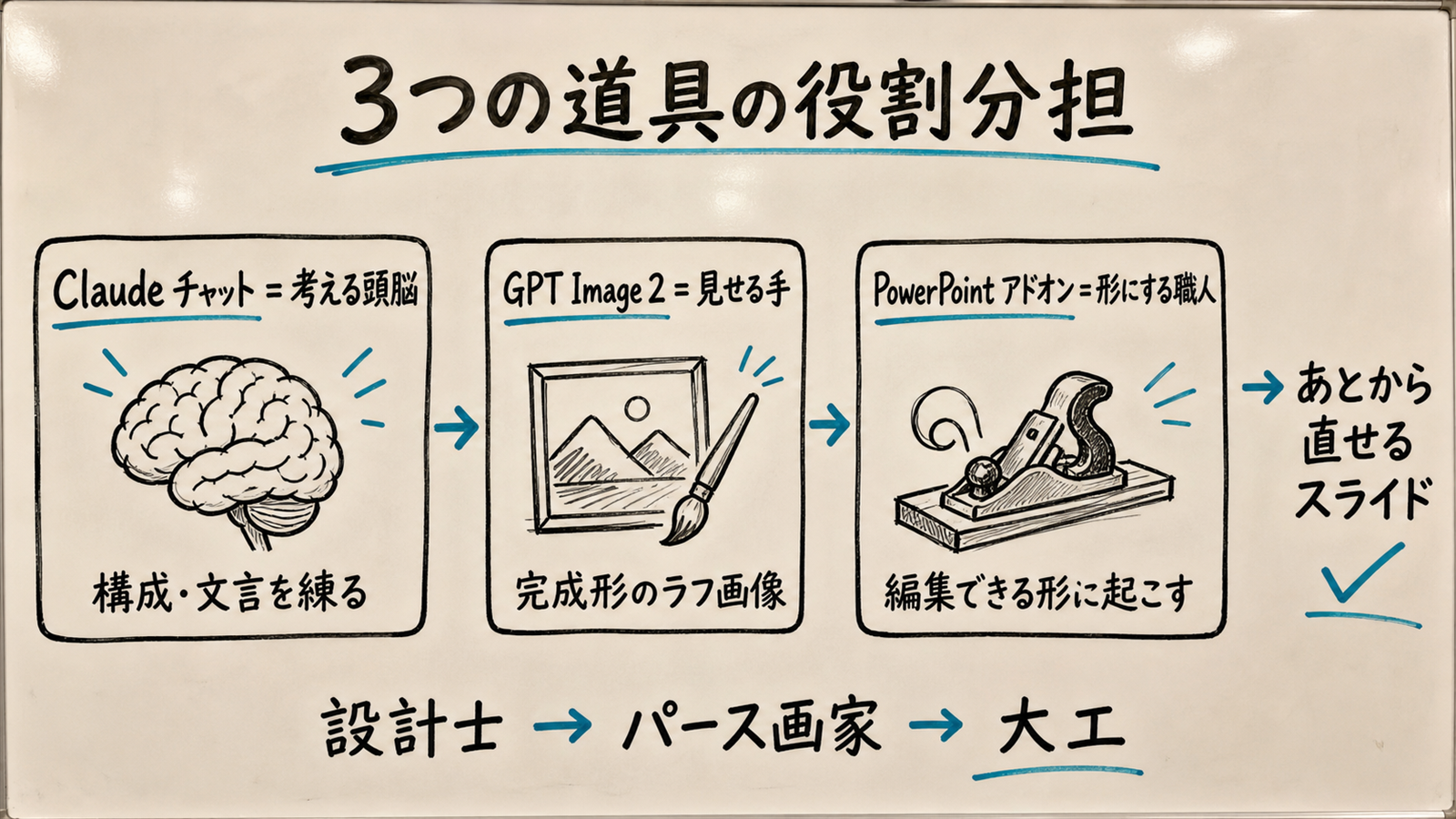
Bottom line first: deck quality is decided not by "which tool is most amazing" but by "how you split the three roles." Claude chat is the thinking head, GPT Image 2 is the hand that shows the finished look as a picture, and the PowerPoint add-in is the craftsman who rebuilds it into editable form. Picture an architect, a rendering artist, and a carpenter passing the baton on a job site. Make one person do all of it and the result is mediocre; split the roles and the final deck becomes not "a pasted image" but "native slides you can still fix one character at a time." Conversely, asking the chat to "also build the slides" in one shot is the most wasteful way to use these tools.
Until recently, my (the Sales Claw developer's) deck-making had only two modes. One was "dump it in the chat"—ask Claude or ChatGPT to "make a sales deck" and paste the text straight into PowerPoint. The other was "fight PowerPoint all night"—line up shapes one by one, match colors, hunt for icons. The former is fast but flat and "doesn't land"; the latter is clean but eats half a day. Honestly, both were painful.
Now I say the opposite. "Use three in sequence" and you get both speed and quality. This article is the lab note for that procedure. What I actually built is the 6-page service deck for Sales Claw (the open-source tool I develop that automates B2B inquiry-form outreach), shown at the top of this blog. The opening screenshots are the production process itself. Read it alongside the explainer on subagents that let AI "divide labor" and the latest Codex updates on delegating work to AI—all extensions of the same "split the roles and assign" idea.
This article cites OpenAI's "Introducing ChatGPT Images 2.0" / Claude Help Center "Use Claude for PowerPoint" / Claude for Microsoft 365 as primary sources. The Sales Claw free download page is also here.
First, why "single-tool" use stalls. In fact, each tool has a clear weakness.
| 項目 | Weakness when used alone | When the three are chained |
|---|---|---|
| Chat only | Smart text, but flat layouts that "don't land" | Devote it to the "brain" of structure and wording |
| Image gen only | Looks clean, but text is blurry and unfixable later | Let it just show "the finished-look rough" |
| PPT add-in only | Careful, but drifts without a goal image | Make it the craftsman that turns roughs into editable form |
| Resulting deck | Pasted images / flat text | Native slides you can fix one character at a time |
Think of building a house by "asking one carpenter to do everything from design to interior." It can be done, but the carpenter (the PowerPoint add-in) works faster and more accurately when the blueprint (structure) and the rendering (finished image) come first. [Author's view] AI tools are the same: it works best to hand "think," "show," and "form" to separate specialists.
Here's the pitfall: many people chase "a better single tool," but what actually changes quality is not "switching tools" but "how you connect them." Just hand off between the Claude, GPT, and PowerPoint you already have. No new subscription is fundamentally required (pricing below).
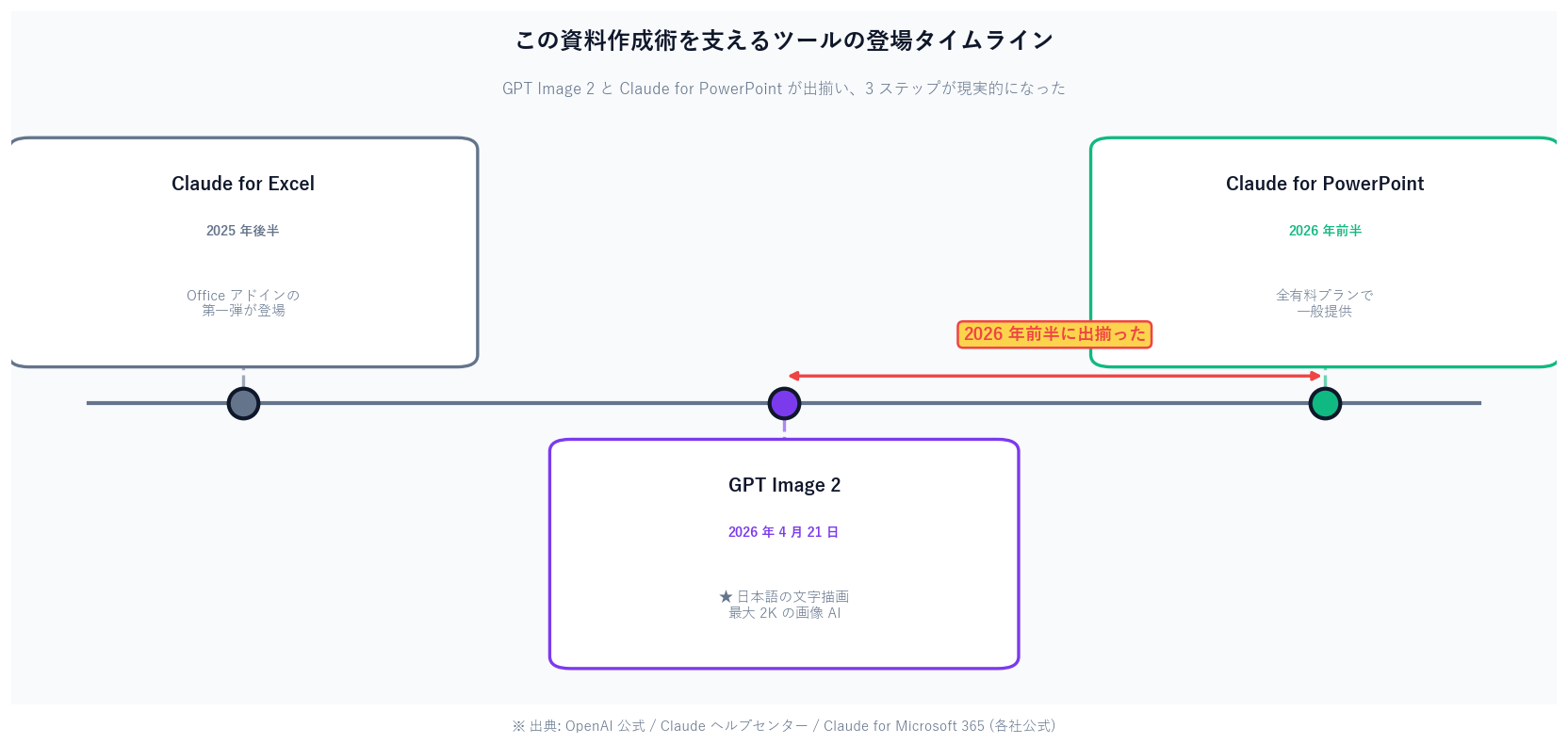
[Official] GPT Image 2 (the consumer name is "ChatGPT Images 2.0") is an image generation model OpenAI announced on April 21, 2026. OpenAI calls it its "most capable image generation model," citing "agentic" behavior that researches, plans, and reasons about structure before generating, character-level accuracy for Japanese, Korean, and Chinese text, and up to 2K (2048px) resolution. It's available in ChatGPT/Codex and via the API (model ID gpt-image-2-2026-04-21).
In plain terms: it's "an image AI whose Japanese title text rarely breaks and that actually honors layout instructions." That makes it good for producing a deck's "finished-look rough." [Author's view] Older image AIs turned Japanese into garbled symbols; GPT Image 2 mostly preserves a structure like "a cover with a title plus three feature points"—text included. That's exactly why it works as the "source material the PowerPoint add-in recreates."
[Official] Claude for PowerPoint is part of Anthropic's Claude for Microsoft 365—a Claude extension (add-in) that runs inside PowerPoint (the right-hand side panel). The official Help Center says "Claude reads the slide master, layouts, fonts, and color scheme in your deck and uses them when generating or editing slides." It can also turn bullet points into "professional diagrams and native PowerPoint charts."
[Unverified] The behavior of "the add-in recreating icons as SVG (vector shapes that don't degrade when scaled)" is not stated in the official Help Center. The SVG-icon technique below is a usage I actually obtained by instructing it (experiential), not a guaranteed spec. Note that Claude chat itself is used for the structure step, so the idea of splitting roles and assigning them to AI applies directly here.
| Item | Fact / figure | Source | Author's read (its role here) |
|---|---|---|---|
| GPT Image 2 release | 2026-04-21 | OpenAI | The hand that draws "finished-look roughs," Japanese titles included |
| GPT Image 2 resolution | up to 2K (2048px) | OpenAI API Docs | Enough resolution to rough out a full slide |
| Claude for PowerPoint plans | Pro / Max / Team / Enterprise | Claude Help | The craftsman that rebuilds roughs into editable slides |
| What the add-in reads | slide master, layouts, fonts, colors | Claude Help | Recreates without breaking your existing template's look |
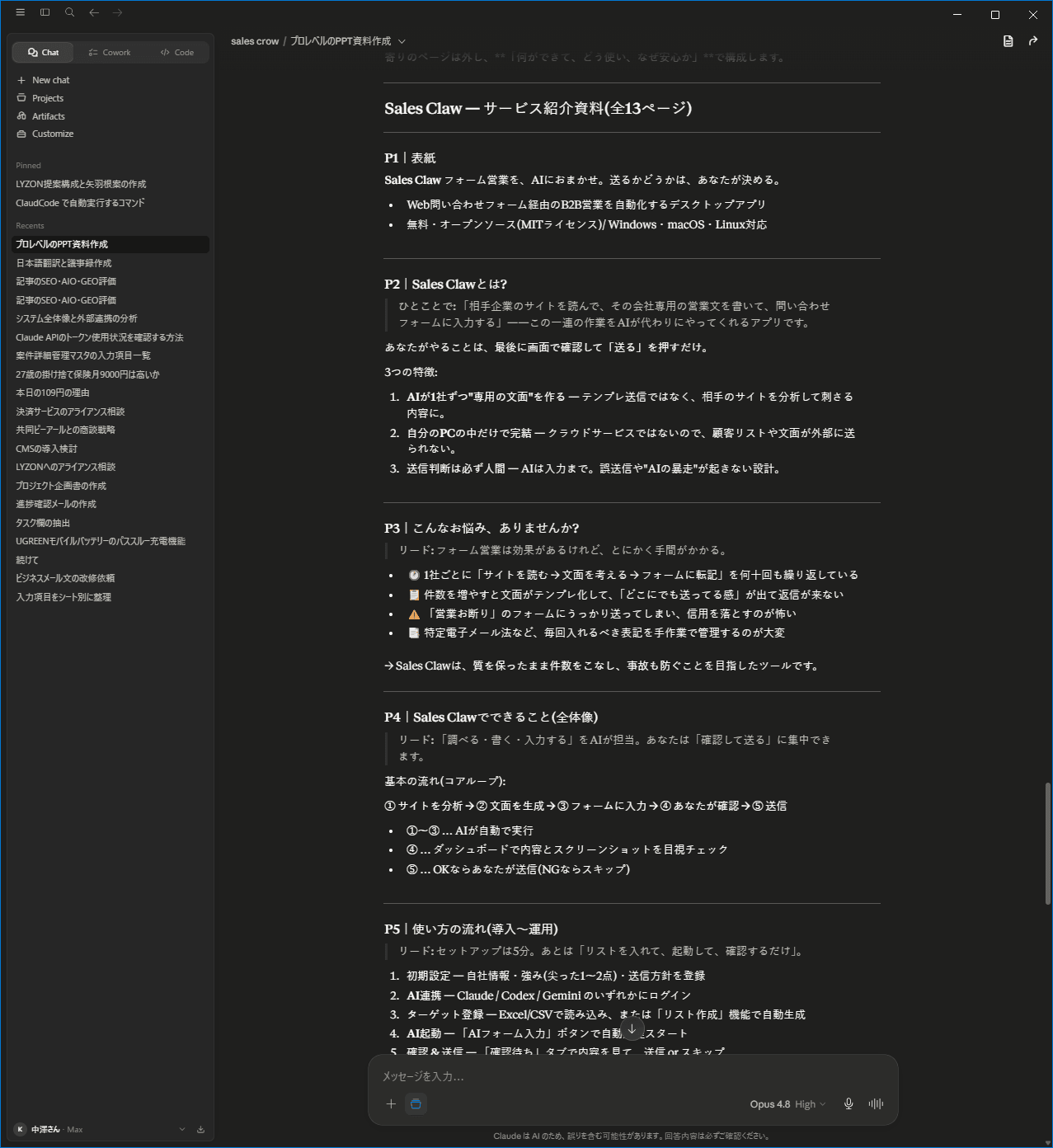
In the actual build, I first drafted the structure of the "Sales Claw service deck (6 pages)" in Claude chat. The screenshot lists, per page, the aim and the elements to include: P1 cover / P2 What is Sales Claw? / P3 the pains / P4 what Sales Claw can do … The key is to make no visuals here. Focus purely on the design of "what to say."
[Author's view] Think of it as deciding the menu and recipe before cooking. If the ingredients (information) and order (page structure) aren't set, starting from plating (design) always falls apart. Claude chat lets you spar—"this order lands better," "swap P3 and P4"—while holding long context, which makes it ideal as the brain that drafts structure. Concretely, ask like this:
[Example request to Claude chat]
You are a B2B SaaS sales-deck designer.
Design the "Sales Claw" service deck as 6 pages.
- One line per page on its "aim (who, what message)"
- Bullet the elements to include (headline, body, figure, figures)
- Don't make images or design yet. Lock only the structure.
The reader is an SMB sales rep frustrated with inquiry-form outreach.
The output here is just text, but it's the foundation for everything downstream. If this is weak, no matter how pretty the images, you get a "deck with no substance." Conversely, once the structure is set, the rest is half mechanical.
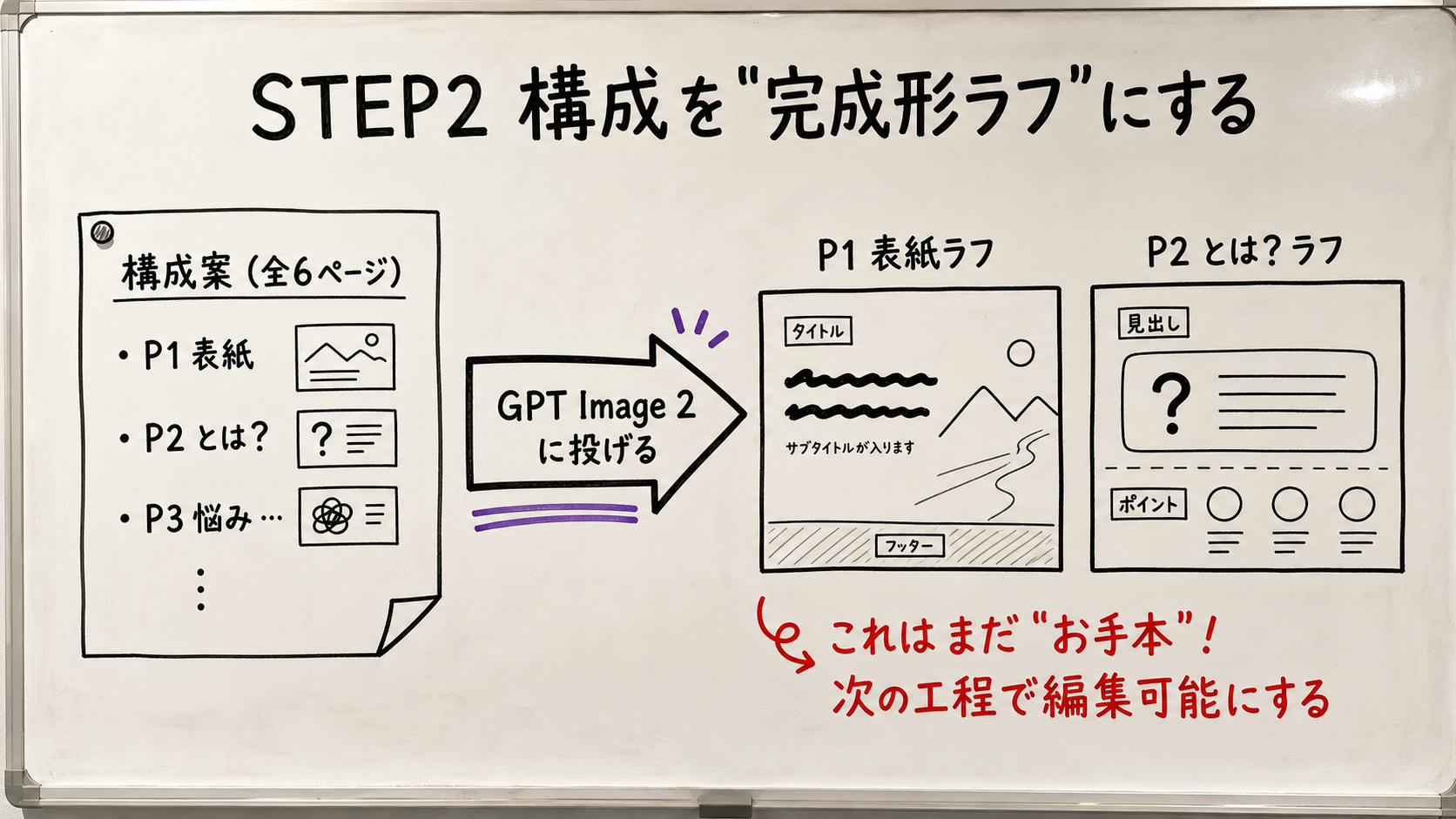
Send each page's content from STEP 1 straight to GPT Image 2 as "make this page into one slide image." In the screenshots, ChatGPT generates the P1 cover ("Automate B2B form outreach with AI," with the product visual) and P2 "What is Sales Claw?" each as a single finished-look rough.
[Example request to GPT Image 2 (P1 cover)]
Create an image designed as a single "16:9 slide" with:
- Headline (Japanese): Automate B2B form outreach with AI.
- Subhead: Humans hold the send decision.
- Product image on the right, four feature icons along the bottom
- Dark base palette with a cyan accent
- Keep the Japanese text intact, don't garble it
Here are the actual generation screens and outputs. On the left, the ChatGPT (GPT Image 2) screen sending the instruction; next to it, the rough that was generated. Both the P1 cover and P2 "What is Sales Claw?" are shown.
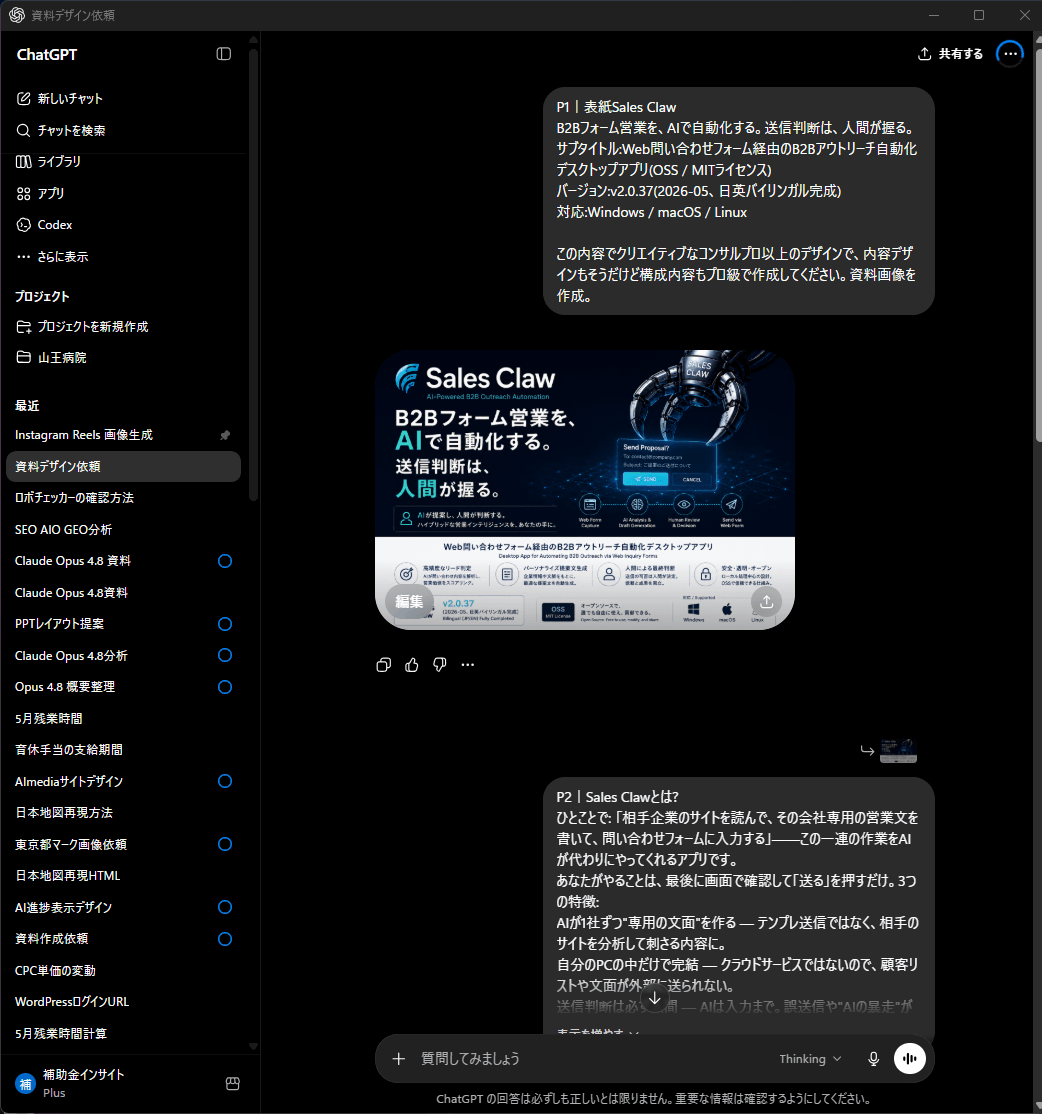

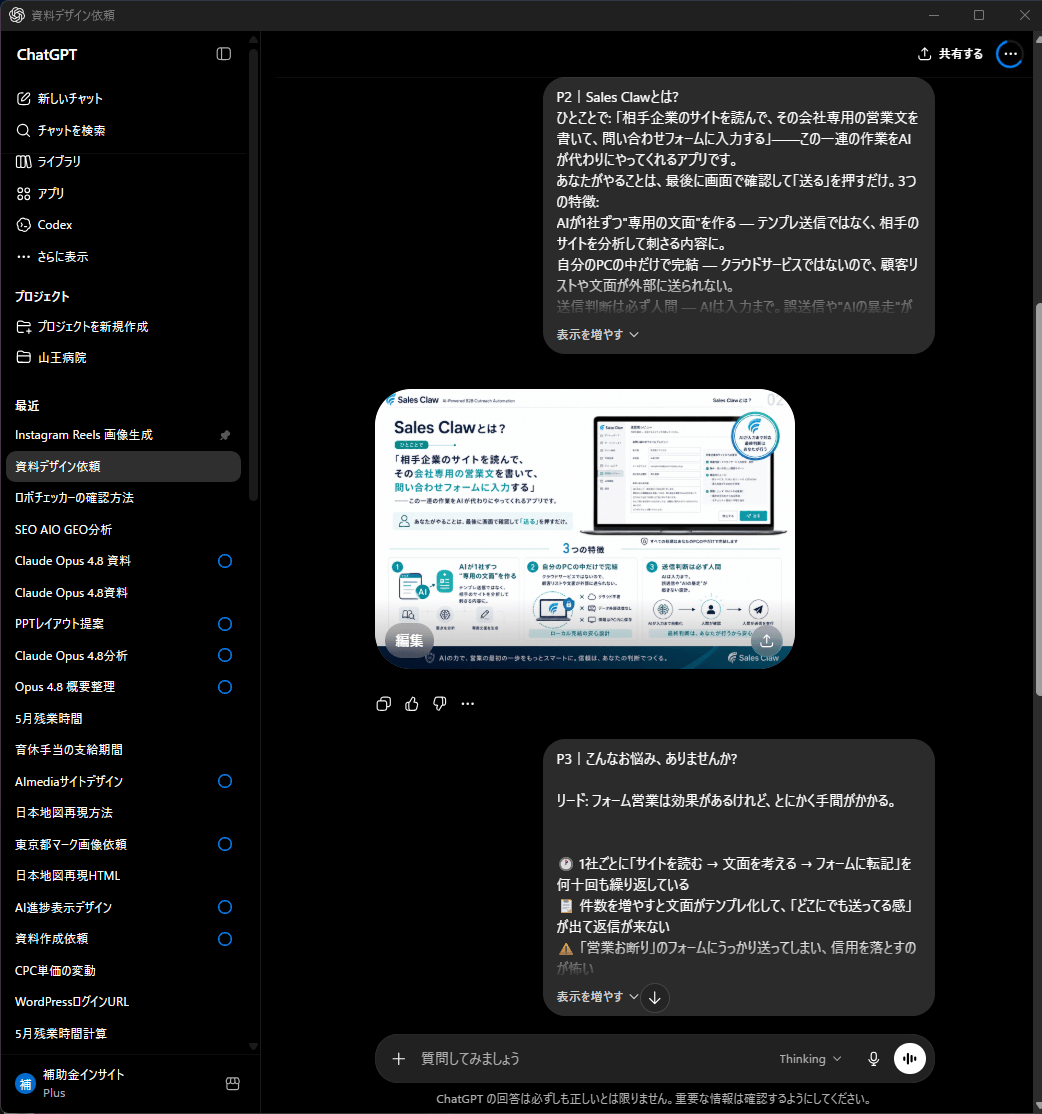

[Author's view] What matters is accepting that "this image won't be the deck itself." GPT Image 2's output may slightly blur text or deviate in details. That's fine. The aim is "getting the goal onto one image." With the blueprint (STEP 1) plus the finished rendering (STEP 2), the next add-in step runs far more accurately.
[personal_metric / failure] At first I pasted GPT Image 2's output straight into PowerPoint as an image. The result was awful: text blurred when scaled, not a single character editable, colors unchangeable. A "pretty image" had become a "dead slide." That failure is exactly what led me to STEP 3.
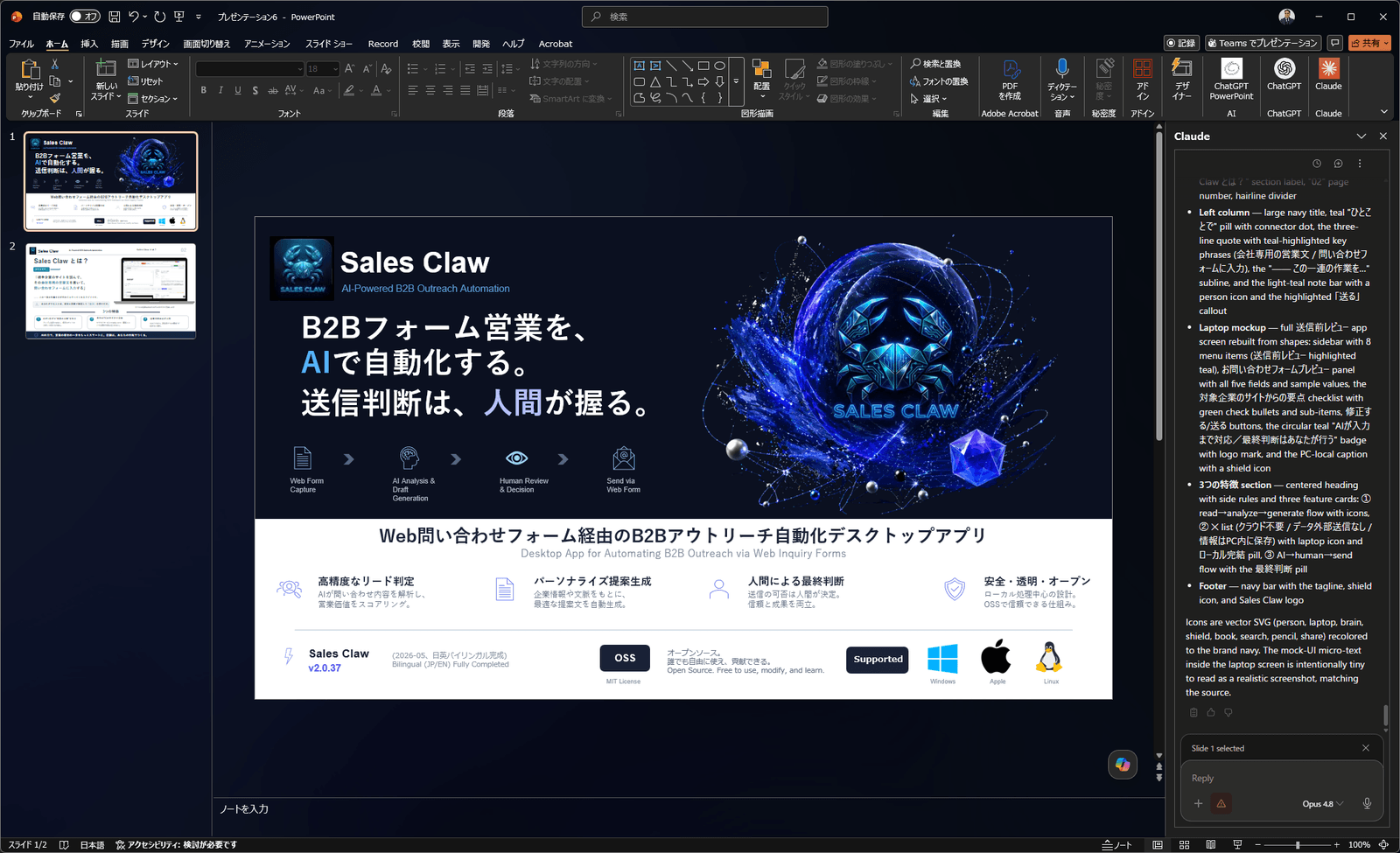
The final step. Paste the rough image you made with GPT Image 2 onto a PowerPoint slide and, showing it as a reference in the right-hand Claude add-in panel, instruct it like this.
[Example request to the Claude for PowerPoint add-in]
Recreate this image faithfully on this slide.
- Match layout, colors, and wording to the image as closely as possible
- Make text "text boxes," not part of an image (so it stays editable)
- Recreate icons as SVG / native shapes, not pasted images
- Match this deck's slide master and color scheme
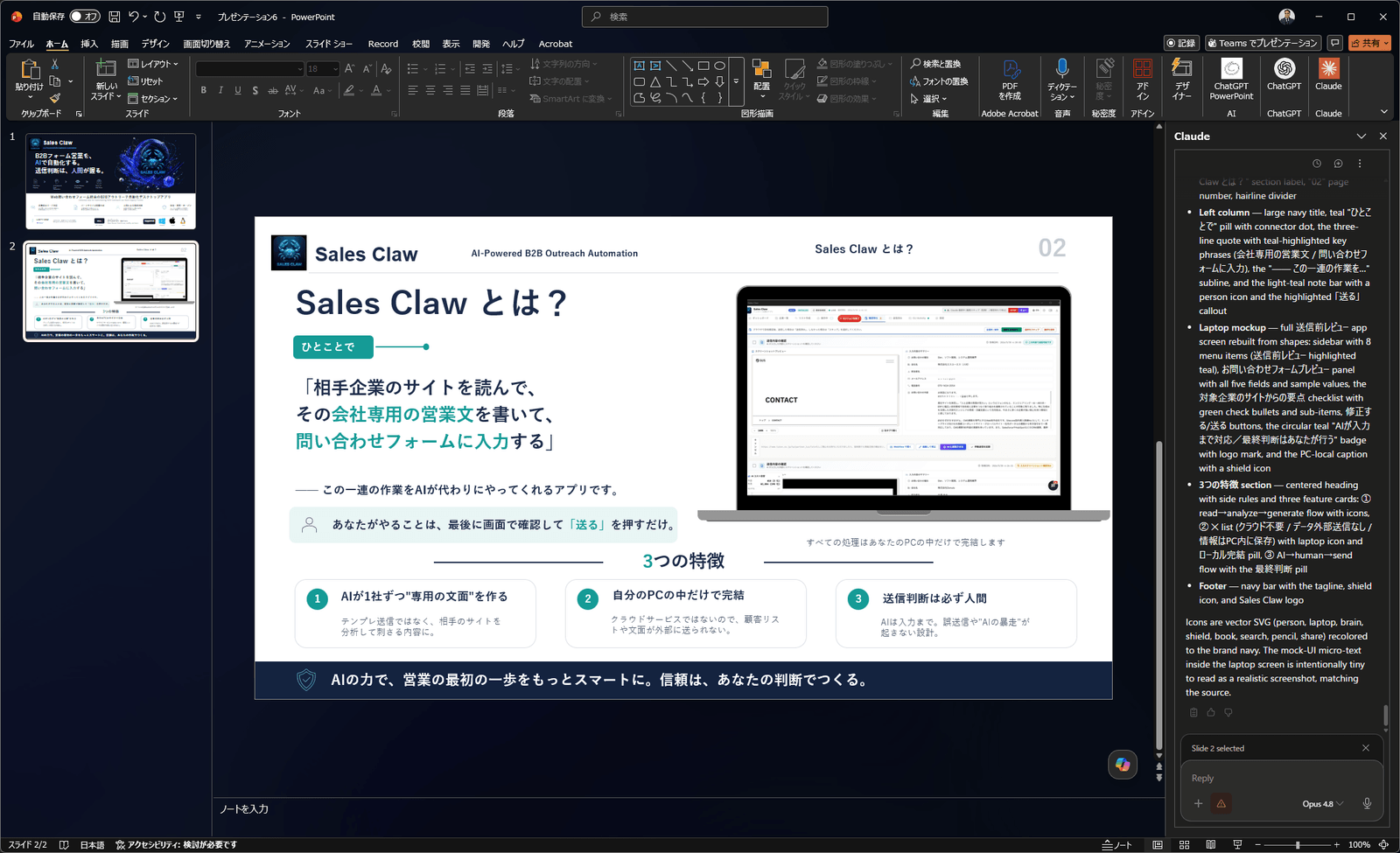
What the user actually said was shorter: "Just recreate this faithfully in one go. Recreate icons and such as SVG." Because the add-in reads the slide master, layouts, fonts, and colors (official spec), handing it the reference image lets it rebuild it as a set of editable elements. The final results in the screenshots (P1, P2) are exactly these recreations.
[personal_metric / experience] The 6-page Sales Claw deck in this article's screenshots was truly built with just these three steps. And the recreated slides let me freely fix a single character in the title or change a feature icon's color—editing that was impossible back when I pasted images. From "pretty but unfixable image" to "fixable native slides"—this one step decisively changes the quality of the output.
| 項目 | ✅ Where the 3 steps work | 🚫 Poor fit / use something else |
|---|---|---|
| Deck type | Sales decks, proposals, service slides | Numbers-only routine reports (a template suffices) |
| Tie to results | Decks where "look that lands" drives results | Internal memos/minutes where format is irrelevant |
| Template use | Want to follow an existing template (colors, fonts) | Free-form design outside a strict brand guide |
| Frequency | Want a team-repeatable way of building | A single throwaway slide |
[Author's view] This procedure shines for "decks whose look drives outcomes." For format-agnostic internal docs it's overkill. Tools have a right place—the very lesson from the piece on dividing AI labor.
From here, as the Sales Claw developer, how this technique pays off in the field. Sales Claw is an OSS tool designed to reduce mis-send and policy-violation risk through policy control, pre-send automatic inspection, sales-NG detection, stop on CAPTCHA detection, send-rate limiting, audit-log retention, and automatic stop conditions. It runs form outreach semi-automatically, but if the quality of the deck handed over at first contact is low, response stays dull no matter how much you parallelize outreach.
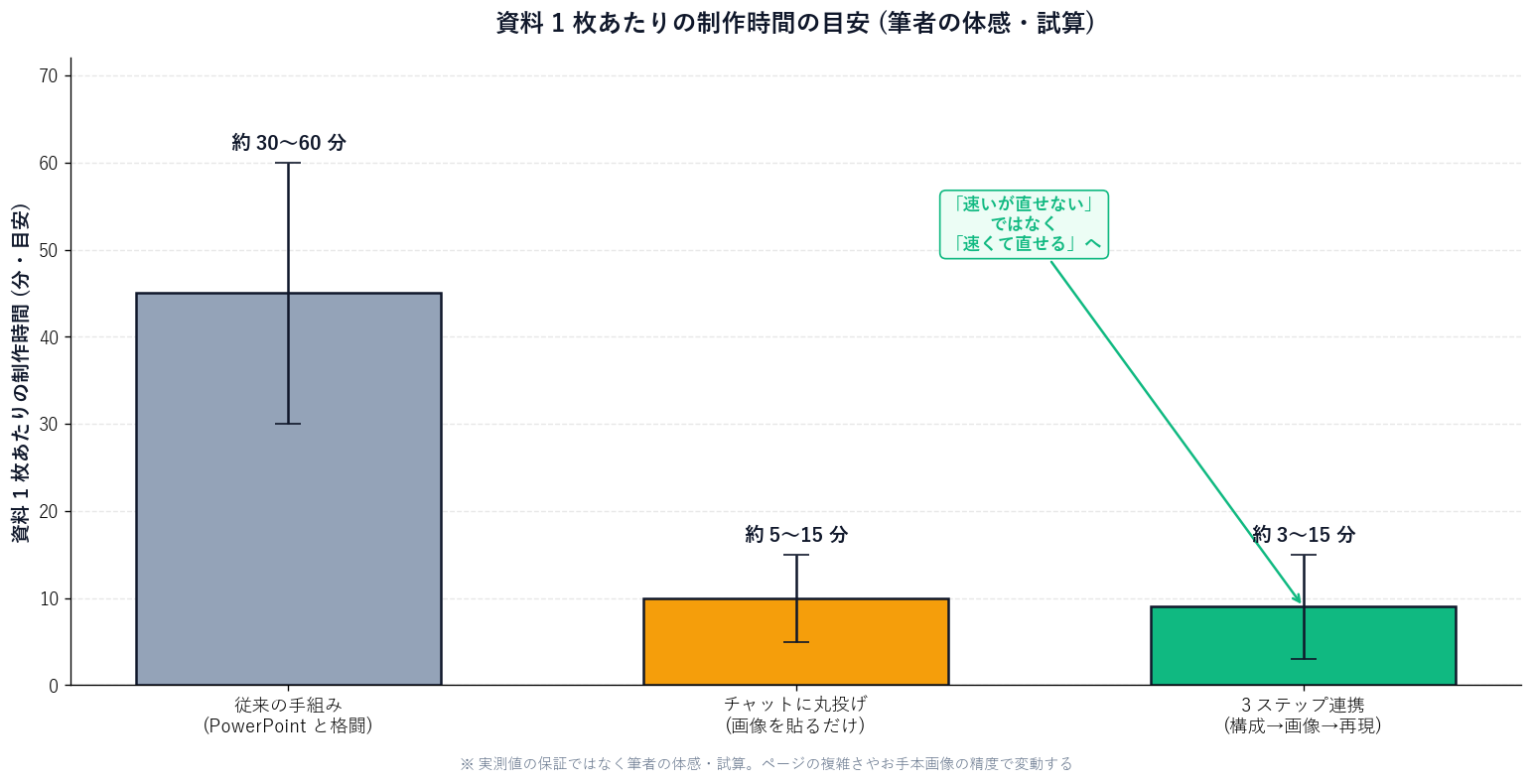
[Felt / projected] I used to spend 30–60 minutes finalizing one intro slide. Since switching to three steps, when the structure is set I can reach an "editable slide" in a few to a dozen minutes per slide. This is felt, not a measured guarantee, and it varies with page complexity and reference-image quality. Still, redirecting the freed time to proposal substance and per-prospect tailoring is a big deal.
[Measured / honest disclosure] For the record, I'll be honest about the premises. Sales Claw's automated sending currently runs on a small sample of 44 companies verified and 10 actually sent. The rest auto-hold for approval (awaiting_approval), skip, or error, and all of it is kept in the audit log (action-log.json). Figures like "blast 10,000 companies" are projection scenarios, not measurements, and this article does not exaggerate them. The deck-making story and Sales Claw's operating scale are both kept un-inflated and separate.
A word on where it fits in a sales org. The more you face "high volume without dropping quality"—the intro decks an SDR (inside sales development rep) sends daily, or enterprise RFP (request for proposal) response decks—the more this division of labor pays off. On the Sales Claw side too, sends are recorded in action-log.json, doubtful cases auto-hold via awaiting_approval, and sales-NG targets are blocked by approachGuardrails (a pre-defined list of who/what must not be sent)—"brakes at each step" that reduce mis-send risk. The design philosophy of MCP (Model Context Protocol), which connects external tools to AI, and of subagents shares the same root: split the roles, and don't let it do the dangerous thing.
[Author's view] The point is that the "division of labor" in deck-making and in sales automation share the same philosophy. Decks split "think, show, form"; sales splits "research, inspect, operate." Neither lets one thing do everything. Enterprise AI adoption ultimately lands on this same design of role-splitting plus compliance (audit logs, automatic stops). The more repetitive the work—SDR outreach, RFP responses—the more this "split it, and don't let it do the dangerous thing" approach pays off.
This procedure is powerful, but misuse carries risk. Rather than declaring it "safe," here are the specific landmines with fixes attached.
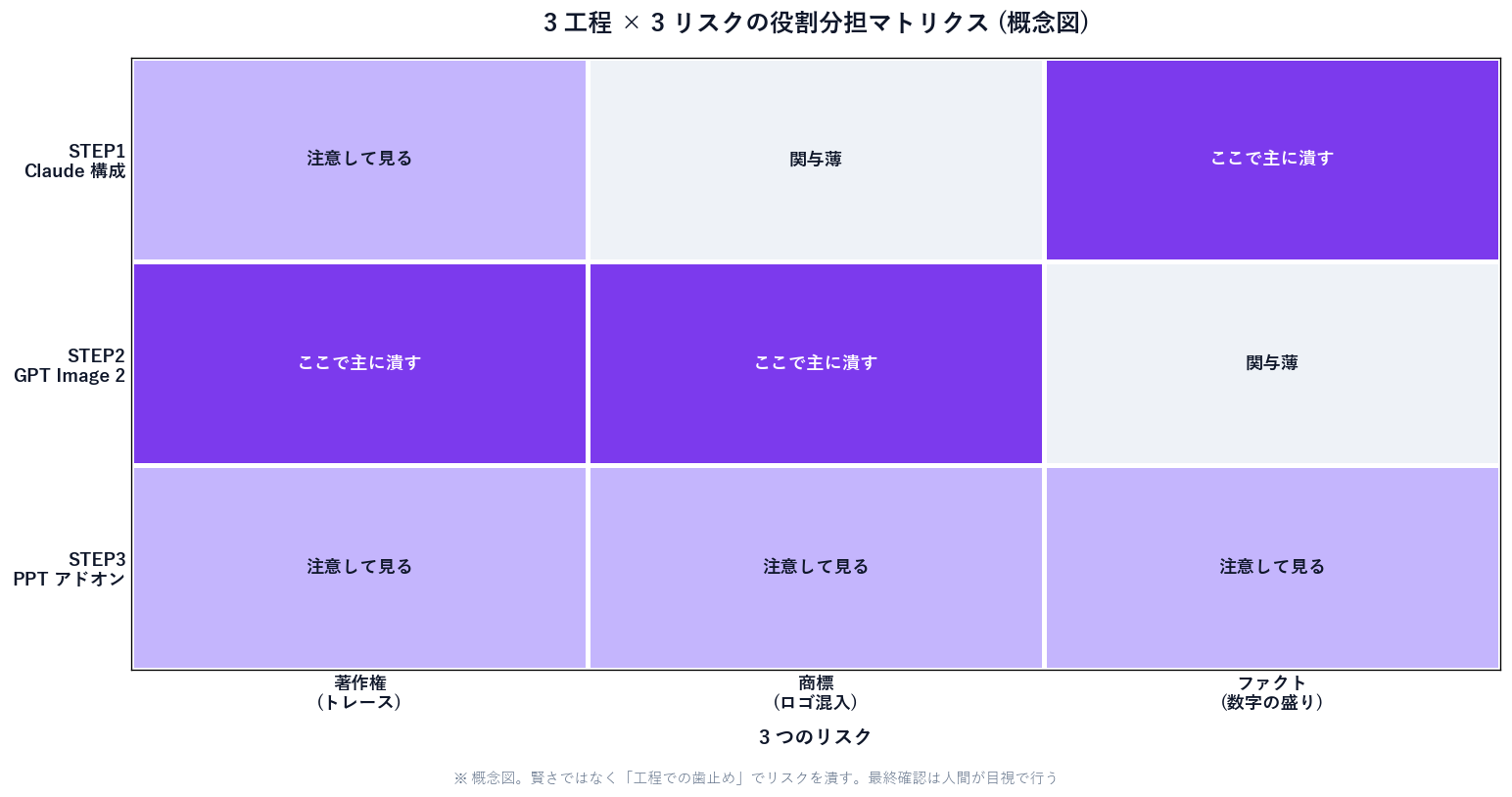
[Author's view] The most dangerous use is handing another company's slide or web image to GPT Image 2 as a "reference" and recreating it. Your own original structure and images are fine, but substantially copying someone else's copyrighted work can be infringement. Keep the reference limited to roughs you made yourself.
In image generation, plausible logos or trademarks can slip in even unbidden. Always eyeball the output and delete any competitor or third-party trademarks or official logos. [Unverified] Rights to AI-generated images differ by tool and plan terms, so confirm commercial-use eligibility in each service's terms (this article doesn't assert it).
Have Claude draft structure and it may insert numbers you didn't ask for, like "○○ companies adopted." This is the biggest pitfall. Putting false results on a sales deck can run afoul of laws against misleading representation. [Author's view] Always verify numbers against your own data, and label projections as "projection." It's the same reason I strictly separate measured (44 companies, 10 sends) from projected on this blog.
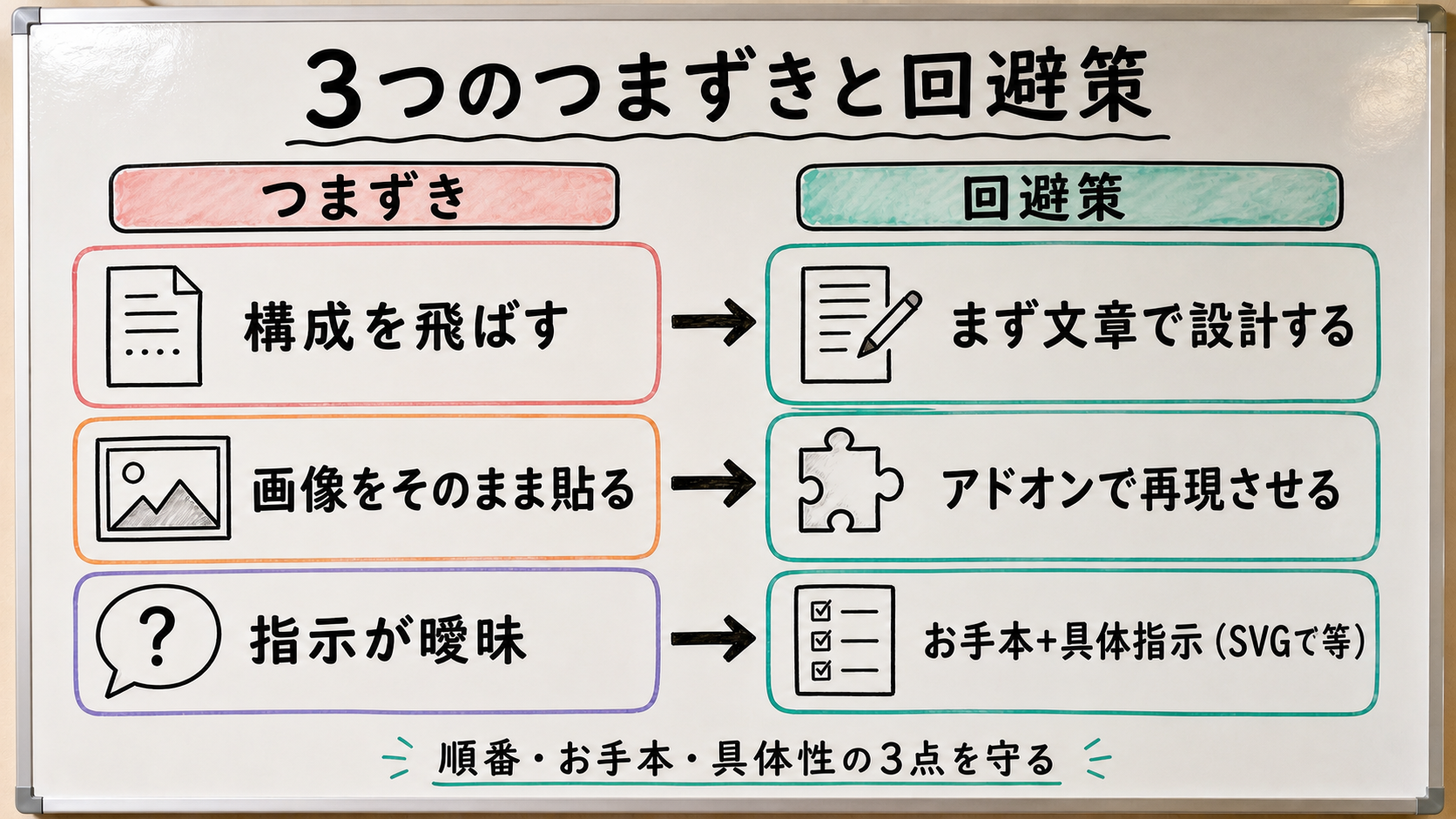
What changes deck quality is not a more amazing single tool but the split of three roles. Structure in Claude chat (think) → finished-look rough in GPT Image 2 (show) → faithful recreation and SVG icons in the Claude for PowerPoint add-in (form). Keep this order and the output shifts from "pasted images" to "native slides you can fix later." Almost no new subscription is needed—you just change how you connect the tools you already have.
Yet skip the order and the effect vanishes. Skip structure and content is hollow; paste images and they're unfixable; vague instructions and recreation gets rough. And for the three points—copyright, trademark, facts—don't leave it all to the AI; a human eyeballs it last. Secure quality and safety with "process brakes," not cleverness—that's my candid conclusion from actually building it.
Before running the 3 steps
Next action: try it on one sales slide you have on hand. Just write the structure in Claude chat, make a rough in GPT Image 2, and ask the PowerPoint add-in to "recreate it faithfully." If you want to systematize selling itself, the Sales Claw quick-start guide—with role-splitting and safety designed in from the start—is also here.
This is the English version. Japanese-language original: AIで営業資料を作る新しい型.
本記事は X 公式アカウントと公式ドキュメントを一次情報として参照しています。
この記事の著者
中澤 圭志
Sales Claw maintainer
Designs and develops Sales Claw. Writes from the field on B2B sales automation and applied AI.